Guide
Worked examples
Five common jobs, from start to finish. Each one links to the full guide for the steps it uses.
Plan the August changeover
You want to check the next rotation before it goes out: everyone has a post, and no site is over its limit.
- Open
Capacity Gridand set the zoom toQuarter. SelectScroll to today. - Turn on the heatmap. Sites near their limit show amber, and sites over it show red, striped.
- Open the validation panel with the alert button in the header. It lists overlaps, gaps and over-capacity sites, each with the trainee it affects.
- Select an issue to open the trainee's record, then select
Resolveto fix it. The window shows the fix before you apply it. - Open
Reports & Gaps. StepGaps by Siteto the August window to see which sites still have room. - Select
Export Data (XLSX)to send the plan out as a workbook.
A trainee goes LTFT at 60%
A full-time trainee drops to 0.6 WTE from February. Their later posts must change, and their training will take longer.
- Open the trainee's record and select
Bulk Edit. Tick each post from February onwards. - Choose the action
Change WTE, enter0.6, and apply. - Read the stage headers in the placement list. Each shows the equivalent months done against the months the stage needs, so you can see how much longer the trainee needs.
- Add the extra time: select
+ Add next postand set its WTE to0.6, or lengthen the last post of the stage withEdit blockand chooseMove later posts. - Update the CCT date in
Edit profile. The app does not work out the CCT date for you.
- A six-month post at 0.6 WTE counts as 3.6 equivalent months.
- A new post starts at 1.0 WTE, so set the WTE on each post you add.
- Do not change the trainee's baseline WTE for this. The baseline applies to every post that has no WTE of its own, past posts too.
- To try the change first, do it in
Testingmode, then promote it.
A trainee goes out of programme for a year
A trainee takes 12 months out of programme from August. Their later posts must move back by a year.
- Make sure the programme has an out-of-programme site. If not, add one in
Manage Sites. An out-of-programme site can have unlimited capacity. - Open the trainee's record. On the post before August, open the
⋯menu and selectInsert after. - Choose the out-of-programme site, the start month August, and 12 months.
- Under
Later posts, chooseMove current and future posts. Every later post moves back by 12 months. - Select
Insert Block. The pathway strip shows the year out, and the posts after it in their new places. - Update the CCT date in
Edit profile.
- A post on an out-of-programme site counts towards the stage's equivalent months, as a post at any other site does. Only a post on a leave site does not count.
- If you chose
Do not moveand the new post overlaps the next one, the form warns you and offersMove later posts.
A site loses two posts
From February, a hospital can take 2 fewer WTE. You need to find who to move, and try the moves before anyone sees them.
- Open
Manage Sitesand switch toGrid View. In the site's row, lower the capacity for each capacity window from February. Each changed window is an override; the site's default capacity does not change. - Open
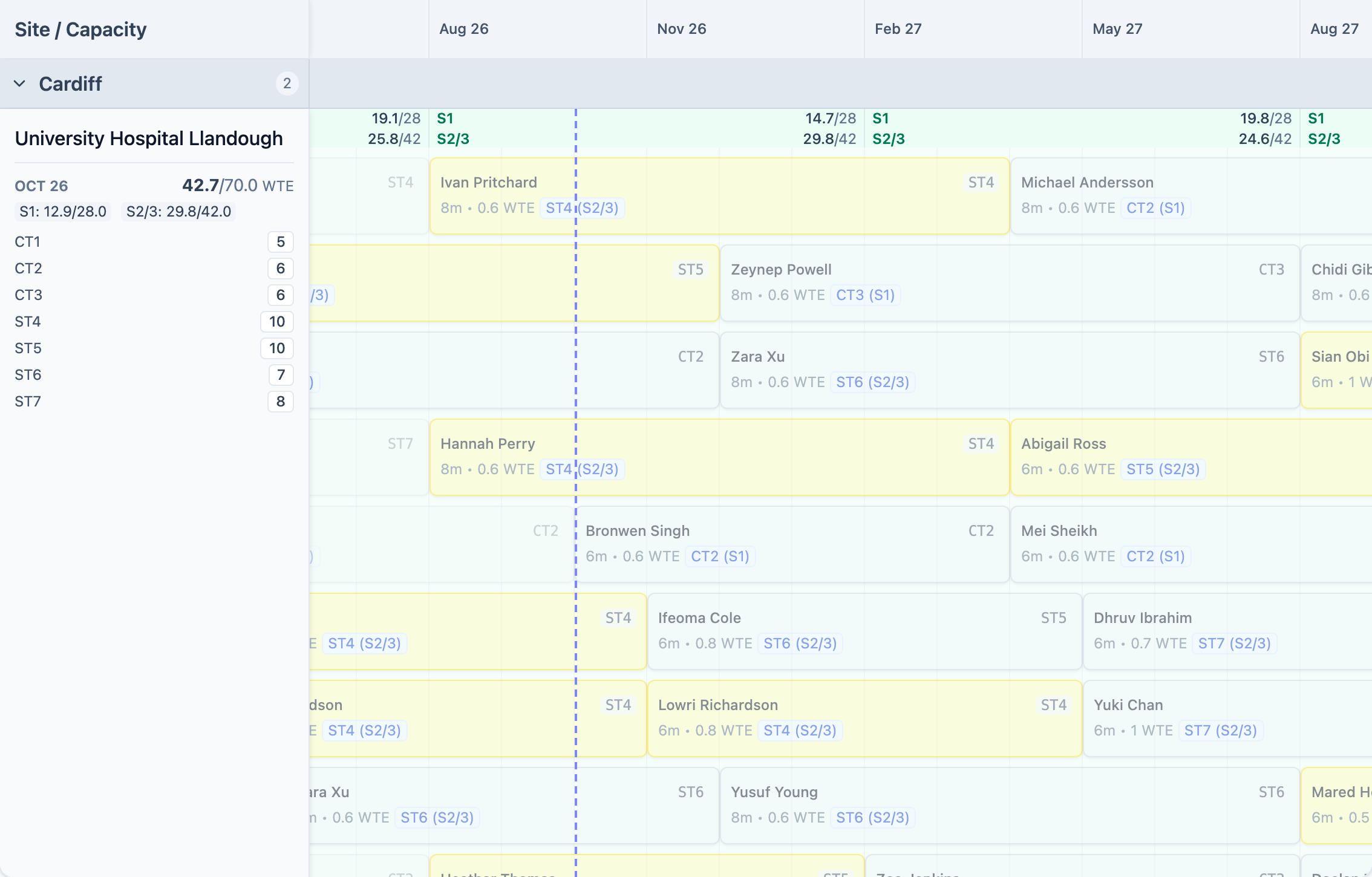
Capacity Gridwith the heatmap on. The site shows red, striped, in the months where it is now over. - Switch the planner mode to
Testing, and create a scenario. - Move placements off the site: drag them on the grid, or change the site in the trainee's record. Check the heatmap and the validation panel after each move.
- When the site is within its limit, start the promote. The
Review Testing Changeswindow lists every change before anything is written to the live plan. - Select
Promote N changes to Live. To give up instead, discard the scenario. The live plan does not change.

Fix a gap the checks found
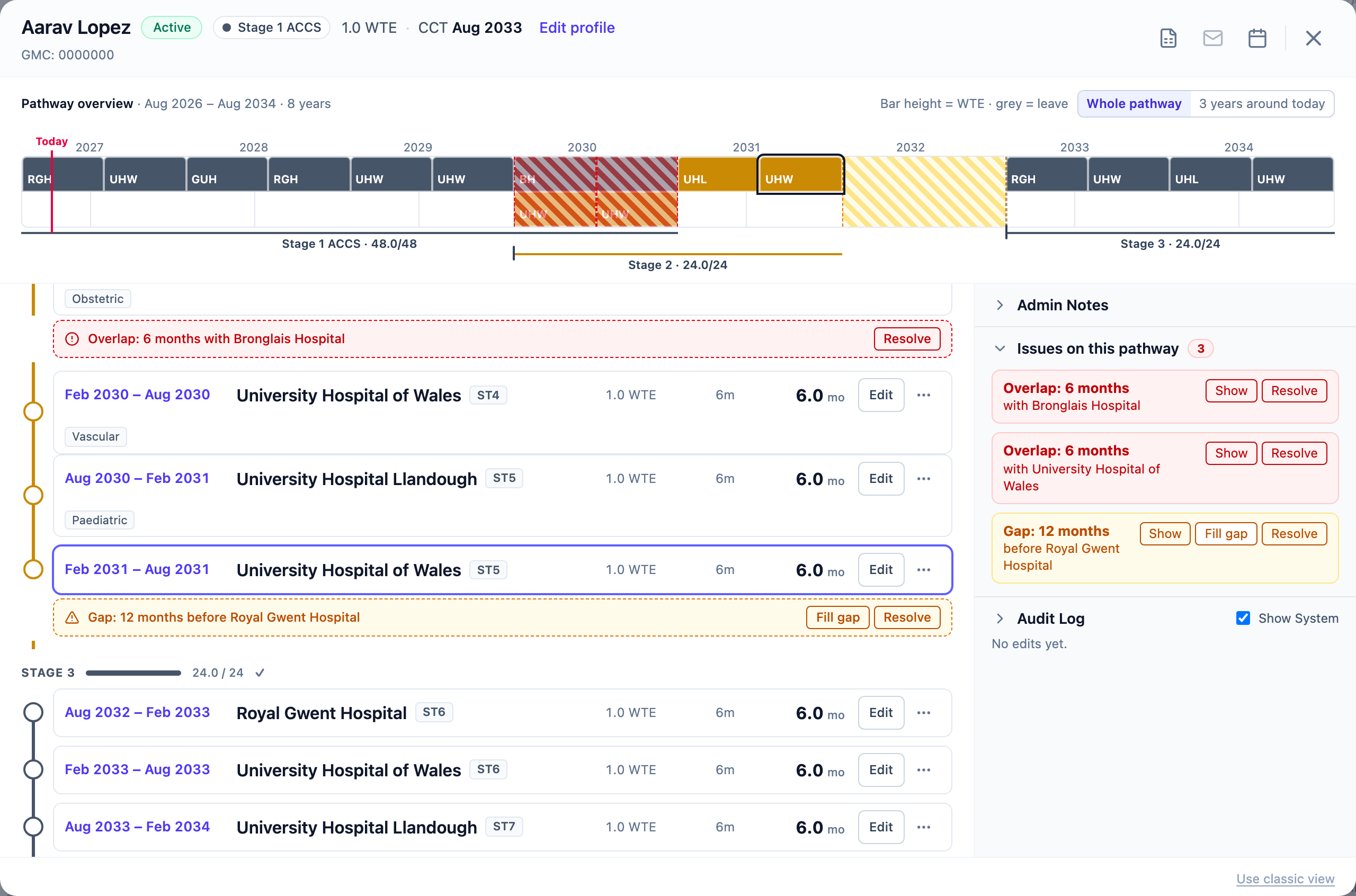
The validation panel shows a 12-month gap in a trainee's pathway.
- Select the gap in the validation panel. The trainee's record opens, with the gap marked in the placement list and in
Issues on this pathway. - Select
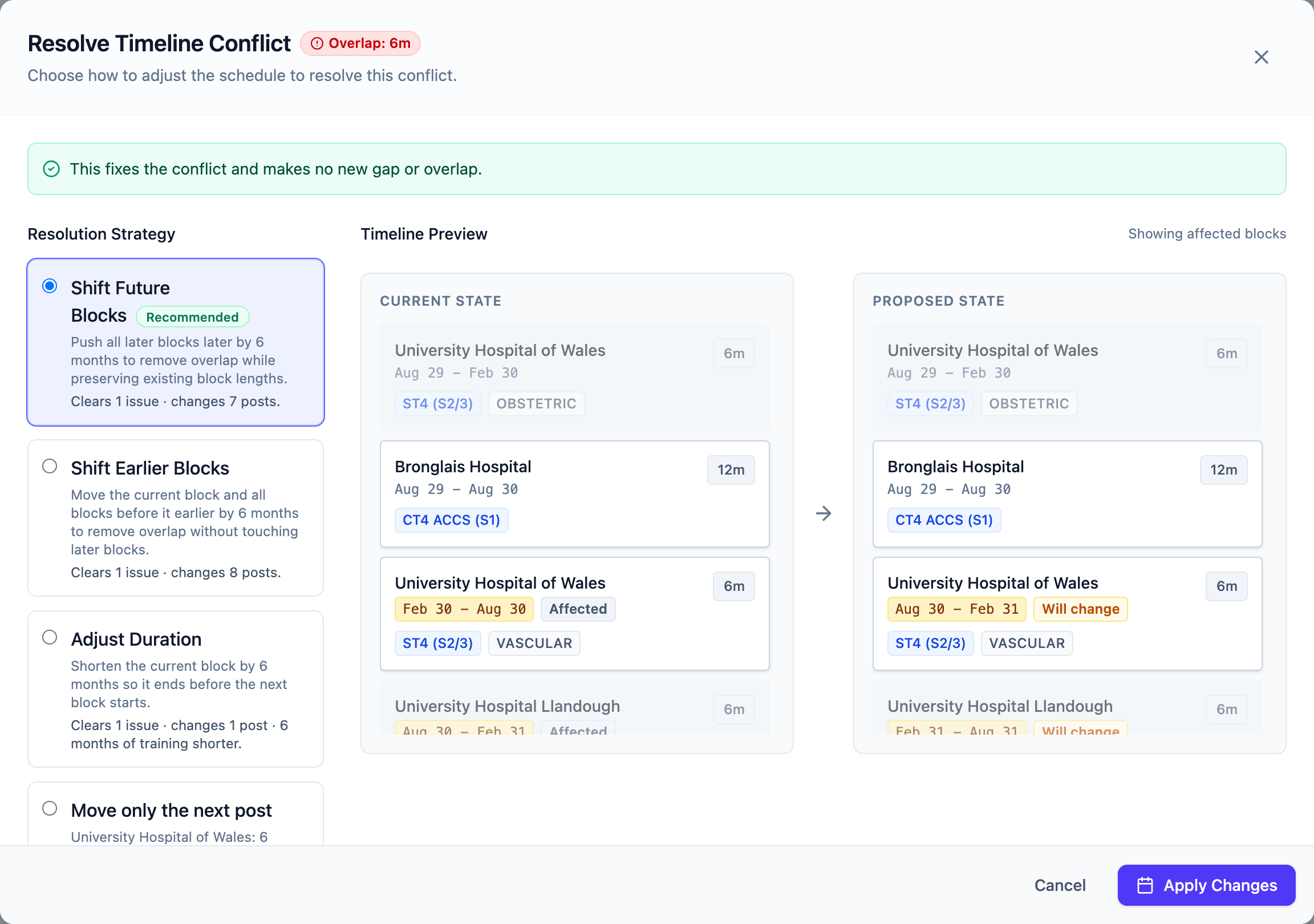
Resolveon the gap. TheResolve Timeline Conflictwindow lists the fixes, best first, and marks oneRecommended. - Read the line under each fix: how many issues it clears, how many posts it changes, and how much training time it removes.
- If the trainee was on leave, choose
Fill the gap with Leave / OOPand choose the leave site. - Check the
Timeline Preview, then selectApply Changes.