Role guide
Manage one organisation, its programmes, and its users
Organisation admins manage one organisation. This guide covers user access, programme management, local setup, and restore workflows.
What this role covers
Organisation admins control the main setup and governance workflows for one organisation.
- Update organisation details.
- Create and update programmes.
- Create users and manage programme access.
- Maintain local programme templates.
- Restore deleted records through
Recycle Bin.
I want to…
Jump straight to the task.
Before you start
Your work affects all programmes in the organisation, so confirm the active context before you edit anything.
- Check the selected organisation in the header.
- Select the correct programme before opening
Programme Setup. - Use
Adminfor user and programme management tasks.
Update organisation and programme details
The Admin area is the control point for organisation-level structure and naming.
- Open
Admin. - Review the current organisation name and edit it if needed.
- Create a new programme or select an existing one to update.
- Edit the programme name and assign a colour token. The colour appears on the programme selector button in the header so users can identify their programme quickly.
- Save the change and confirm the programme appears correctly in the programme selector.
Review organisation reports
Org Report includes all programmes, trainees, and sites in your organisation when calculating summaries and detecting duplicate trainee records. Large organisations are included in full. Trainee name searches show up to 50 matches; use a more specific name to narrow the results.
Create a user and assign access
Organisation admins manage onboarding for their own organisation. Access can be organisation-wide, programme-specific, or both. New users receive an invitation email so they can set their own password — there is no admin-set password step.
- Open
Admin. - Start the user creation flow.
- Enter the user's email address and display name.
- Enable organisation admin access if the user needs organisation-wide control.
- Choose a programme role and select programmes if the user needs local operational access.
- Save the record. An invitation email is sent with a link for the user to set their password.
- Confirm the memberships displayed in the user list.
Update a user's access
Use the access editor when a user's scope, programme list, or active status changes.
- Open
Admin. - Find the target user in the managed users list.
- Open the edit access action.
- Change organisation admin access, programme role, programme list, or active state.
- Save the change and recheck the displayed role label and programme memberships.
- To deactivate a user without removing their records, set their active state to inactive. They will not be able to sign in.
- You cannot set or reset a colleague's password. Users reset their own from
Forgot password?on the sign-in page. A user on a trusted email suffix cannot reset by email; a platform admin resets that password.
Understand the available roles
A user can hold two kinds of access. You set both in the same user form.
Programme manager (TPD)is the one programme role. It covers programme setup, day-to-day planning, and operational control for the programmes you select.- Organisation admin access is a separate switch. It applies across every programme in the organisation, and adds user and programme management.
Roles and permissions compares them in full.
Configure sites
After a programme is initialized, use Manage Sites to configure the placement locations available to that programme.
- Select the target programme in the header.
- Open
Manage Sites. - Add or edit sites, and assign each to a region.
- Configure default capacity per capacity group for each site.
- If the programme has disciplines, set a default discipline for the site. New placements at that site start with it already chosen; existing placements are never changed by it.
- Add date-range capacity overrides if a site's limits change for a specific period.
- Use the region management controls to rename regions or reorganise groupings.
The site detail header shows the region and site type. Only platform admins also see the full site ID for support.
Initialize or maintain programme setup
Every programme depends on a local template. If a programme has not been initialized yet, Programme Setup is the first place to go.
- Select the target programme in the header.
- Open
Programme Setup. - Choose a starter blueprint if the programme is new.
- Initialize the local template.
- Review stages, review outcomes, validation rules, and capacity mappings.
- Save each section and confirm the programme is ready for planning.
Each section saves on its own. A section shows no Save button until you change something in it. Then its border turns amber, the fields you changed turn amber, and the section header shows how many changes are unsaved, with Discard and Save. Saving one section keeps the unsaved changes in the others. If a change cannot be saved as it stands — a blank name, or a maximum below its minimum — the header says why in place of the count, and Save stays off until you fix it.
- The intake month, cycle length and timeline start year sit at the top of
Capacity Groupsand save with that section, not withProgramme Details. Validation Checkssaves as one section: switch checks on or off and pick each severity, then save them together.- The overlap and gap checks have
Also flag past placements. Tick it to show overlaps and gaps between finished posts on the grid and in the validation panel, one severity lower than a current issue. It is off by default. The trainee pathway always shows them. - Under the checks,
Allow Resolve on past overlaps and gapsis on by default. Turn it off to removeResolvefrom past overlaps and gaps in the trainee pathway. They still show, withShowonly. - A colour is shown as one swatch. Select it to choose another colour.
- A padlock in place of the delete bin means the row is still in use; hover over it to see what uses it.
Share a capacity group between training grades
A capacity group is the pool of WTE that a site's capacity is counted against. A placement counts against the group its training grade maps to, and several grades can map to one group — for some specialties they must.
In Programme Setup, the Training Grade Mapping section holds one row per training grade. Each row names the capacity group that grade counts against, and may also name the curriculum stage the grade sits in. The curriculum stage is educational: it labels and filters the grid. It does not decide capacity.
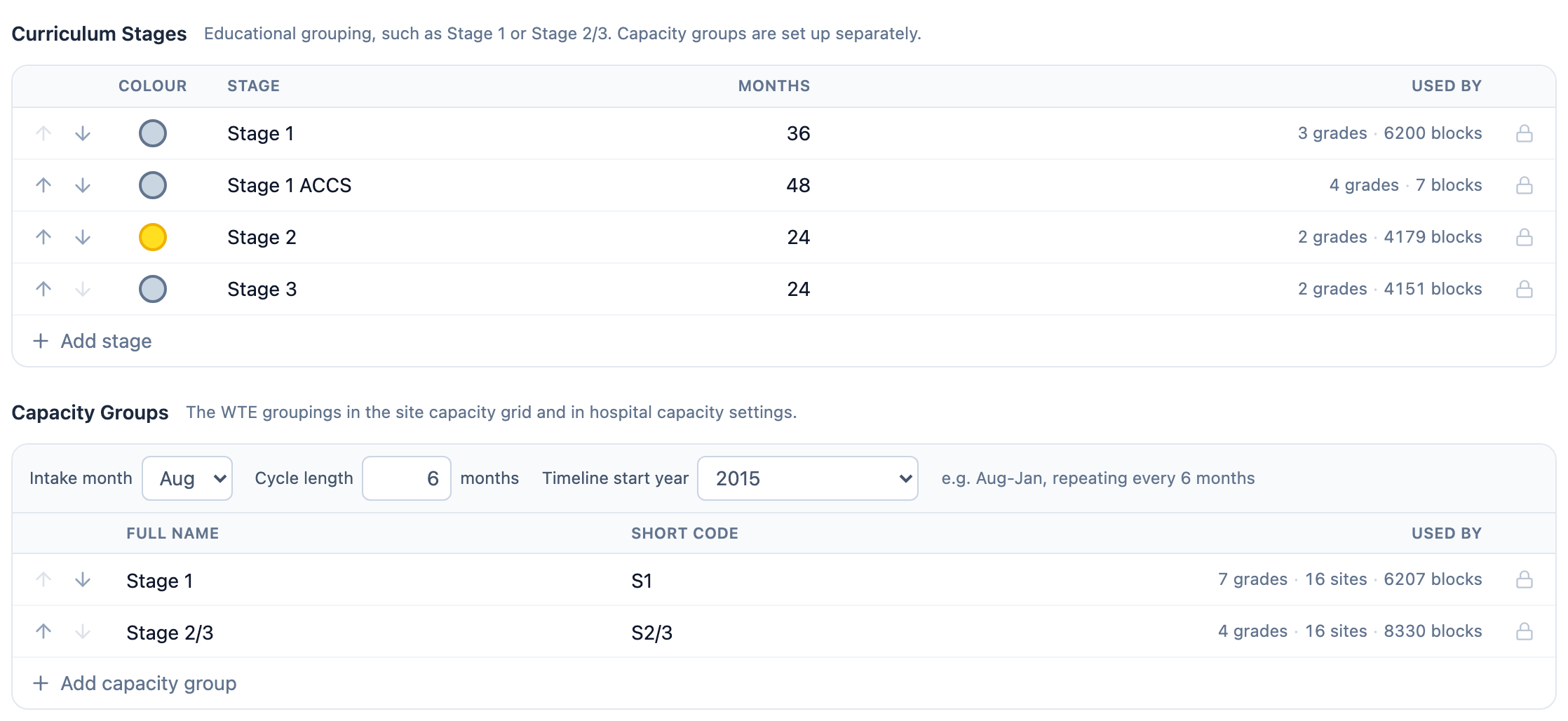
Training Grade Mapping section to see which grades share a group.- Anaesthetics is the worked example: CT1 to CT3 map to the
Stage 1group, and ST4 to ST7 map to the sharedStage 2/3group — seven grades, two groups. - A curriculum stage does not point at a capacity group. It is a label and a filter, nothing more.
- A grade with no mapping row counts against no group at all. The
Warn when a placement counts against no capacity groupvalidation rule reports every placement affected, so a missing row shows up rather than being guessed. It checks placements, not this section: Programme Setup makes every grade pick a group, so it fires for a placement with no grade, or with a grade this mapping does not hold (for example after a programme moves to another configuration). - Changing which group a grade maps to changes what counts as over capacity. Check the affected sites' figures afterwards.
Set up disciplines and curriculum requirements
A discipline names what a placement is *for* — for example "General ICM" or "Cardiothoracic" — as distinct from the site it happens at. A curriculum requirement then says how many months of a discipline a curriculum stage needs.
In Programme Setup:
- The
Disciplinessection lists each discipline's label and colour. Type a label starting with a letter; the code stored underneath is derived from it, so a label that cannot make a valid code is refused before you save. - The
Curriculum Requirementssection is a grid: one row per discipline and one column per stage. Each cell holds a minimum number of months and an optional maximum (12 – ∞means at least 12, no limit). An empty cell means the stage has no requirement for that discipline; clear a cell to remove its requirement. Months are counted in whole-time-equivalent (WTE) months, not calendar months: 6 months at 0.5 WTE counts as 3. - The grid lists the saved disciplines and stages. A discipline or stage you have just added appears in the grid once its own section is saved.
- Removing a discipline is refused, naming the discipline, while a requirement or a live placement still uses it. Remove or reassign those first.
A site can also carry a default discipline, set in Configure sites. A new placement at that site starts with the default already chosen; changing an existing placement's site never changes its discipline.
- Anaesthetics ships with a discipline list but no curriculum requirement rows yet — nothing is enforced until requirement rows exist.
- The FICM (Intensive Care Medicine) blueprint is the only one seeded with curriculum requirements switched on, as a worked example.
- Turning the curriculum requirement check on for your own programme is safe once every relevant placement carries a discipline — otherwise every discipline-less placement looks like an unplanned shortfall.
Manage local templates versus shared blueprints
You own the local setup for your programmes. Shared blueprints come from platform admins, but the local template is what a programme actually uses once it has been initialized.
- Choose a blueprint as the starting point when a programme is first set up.
- Edit the local template after initialization.
- Duplicate a useful local pattern when you need another similar setup.
- Do not expect later blueprint edits to rewrite a programme's local template — the copy is taken once, at initialization.
Restore an earlier programme setup
RotationGrid keeps a copy of the whole programme setup after every save. It keeps the last 50 copies for each programme setup.
- Open
Programme Setup. - Go to
Version historyat the bottom of the page and selectShow. - Find the version you want. Each row shows when it was saved, who saved it, what was saved, and its revision number.
Currentmarks the setup as it is now. - Select
Previewto see what a restore changes: the details, and the stages, groups, grades, disciplines, requirements, outcomes and checks it adds, removes or changes. - Select
Restore, thenRestoreagain to confirm.
A restore is a new save. It is recorded in the audit log, and the setup it replaced stays in the list, so you can restore that one if you change your mind. A restore is not part of Undo in the audit log.
- If the version does not have a curriculum stage, discipline or training grade that posts still use, the restore stops and changes nothing. This includes posts that a testing scenario adds or changes, because promote puts them in the live plan. The page lists those posts (trainee, site, start and length), and marks the testing scenario ones. Move or change them, then restore again.
- If someone else saved the setup after you opened it, the restore stops. Refresh the page and try again.
Oversee restore workflows
Deleted records are soft deleted, not immediately removed forever. Recovery happens through Recycle Bin.
- Open
Recycle Bin. - Search or browse the deleted item lists.
- Choose the correct record type.
- Review the item details carefully.
- Run the restore action.
- Refresh the operational view to confirm recovery.
Check before you save critical changes
Organisation admins spend most of their time in configuration-heavy screens, where a quick review prevents most avoidable mistakes.
- Confirm the selected programme before editing
Programme Setup. - Confirm whether you are editing a local template or reading a shared blueprint.
- Confirm a user's intended scope before granting organisation-wide access.
- Confirm restore targets carefully, because a deleted record can represent an older planning state than the one you are working in.
Know the limits of this role
Organisation admin access is broad inside one organisation, but it is not the same as platform admin access.
- Only platform admins manage the shared
Blueprintslibrary and backups. - User management stays inside your organisation.
- Planning and reporting still depend on the selected programme context.
- Operational records continue to use soft delete and version checks.
Next steps
Read the TPD guide for day-to-day programme operations, or use the troubleshooting guide when access or setup does not behave as expected.